
The driver app: from the first stop to the end of the day
The OptiRoutes driver app puts each driver's route on the phone: the day's stops in order, navigation to each one, delivery reports with signatures and photos, cash and cheque collection, pallet counts and an end-of-day check. The office decides what each driver must do at a stop, and everything the driver reports reaches the office as the day goes on.
Updated:
What do drivers do in the OptiRoutes app?
A driver signs in with the e-mail and password the office set, sees the route that was sent to them, and works through it stop by stop. At each customer the driver reports arrival, marks the delivery as delivered or not, collects a signature and photos when they are required, records cash and cheques, and counts pallets. At the end of the day the app checks that nothing was left unreported and the driver closes the day.
The app is built for the road: big buttons, a list that shows only what matters at a stop, and quick buttons for the common cases. It works in 34 languages and is available on iOS and Android. This page explains the working flow; the driver app page covers installation, sign-in, permissions and privacy.

The route list: today's stops in order
The route list is the driver's home screen. A route appears there once the office sends it from the routes screen; by company setting, the driver may also see routes that are not closed yet, or routes of coming days. Beside each stop the list can show the amount — with a coloured dot by content type, such as chilled or frozen — the order number and the invoice number, and a currency mark beside a cash customer so the driver remembers to collect.
The office decides what the driver may change in the route:
- One-tap delivery — a V button marks a stop delivered and an X button marks it not delivered, when no signature or photo is required.
- Merge customers into one stop when several orders go to the same place.
- Pick a starting stop with the pin icon, once the route has started.
- Reorder the route on the server from the phone.
- Add an order for an existing customer.
Another setting moves yesterday's undelivered orders to the end of today's route when the driver opens it, so nothing missed is forgotten. Day arrows let the driver look at other days, unless the company hides them so the driver sees only the current day. With reporting on future days turned on, a driver can even start tomorrow's route early and report its deliveries.
Reporting a delivery at the customer
With the Arrived button turned on, the driver reports arrival first and the time is recorded; the delivery options open only after it. Then the driver reports what happened:
- Delivered, partial or not delivered — a non-delivery can require a reason, picked from the office's ready list instead of typed.
- Pickups — picked up or not picked up, for orders collected from the customer.
- Returns — with a returns note from a ready list.
- Items — with item management, the driver updates how much of each item code was supplied.
- Pallets — how many were delivered and collected, regular or plaston, when pallet reporting is on.
- Customer location — update the customer's location from the phone when the map point is wrong.
A report sent by mistake is not a problem: Cancel & report again reopens the order on the phone and cancels the previous report on the server too, together with its collection report.
Proof of delivery in the app
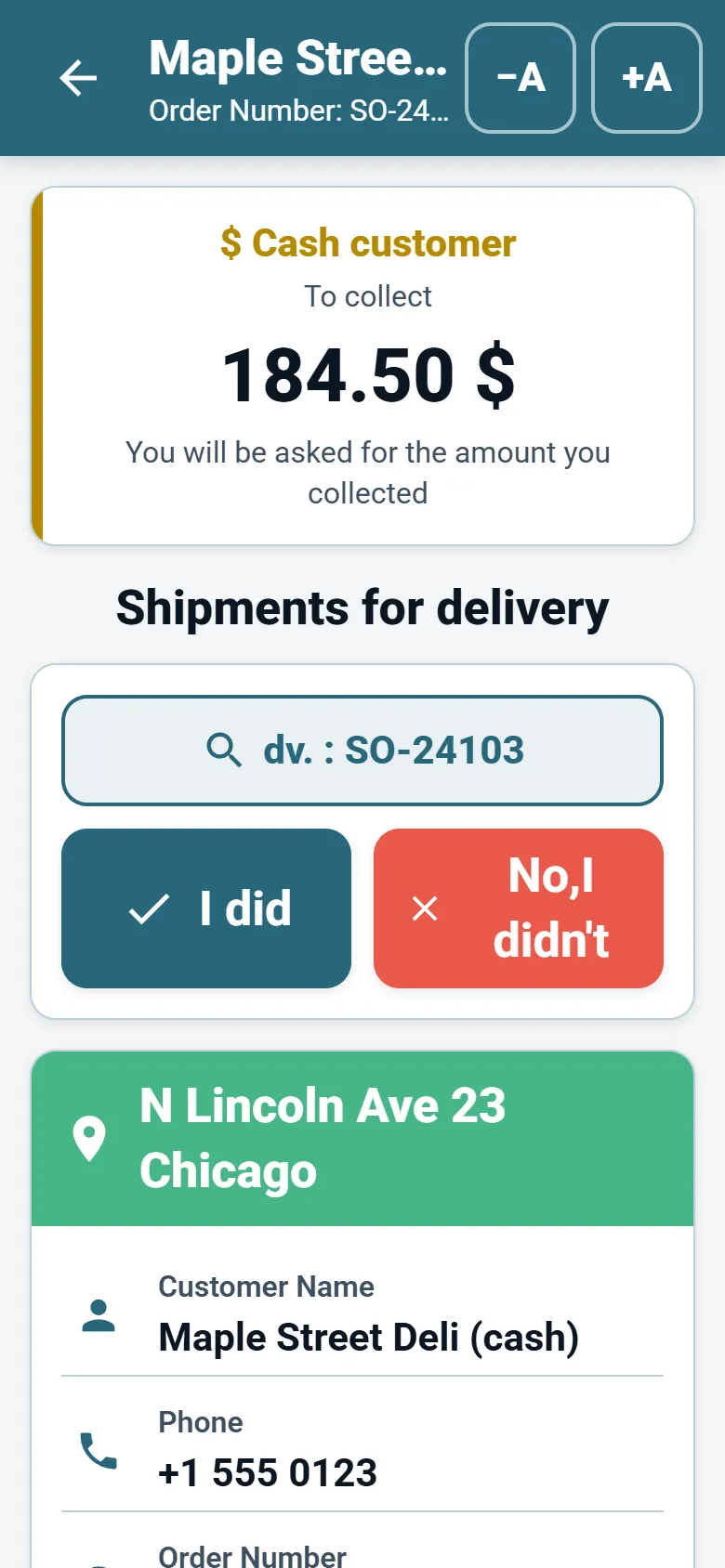
When proof is required, the driver cannot finish a delivery without it. The office can require a photo of the delivery note, the recipient's signature on the screen, the recipient's name and a pallet report, for all drivers or per driver. With the digital signature on the delivery note turned on, the customer signs in the app with up to three photos, remarks and returns — on the order's own delivery note when your system sent one, or on your blank signing template when it did not.
Fields you choose — for example the order number and the amount — show to the driver and the customer while signing. Where reception is weak, the signature can be sent in the background so the driver moves on at once. After signing, the driver can share the signed delivery note from the phone. The full workflow, including where signed notes are e-mailed, is on the proof of delivery page.
Collecting cash and cheques
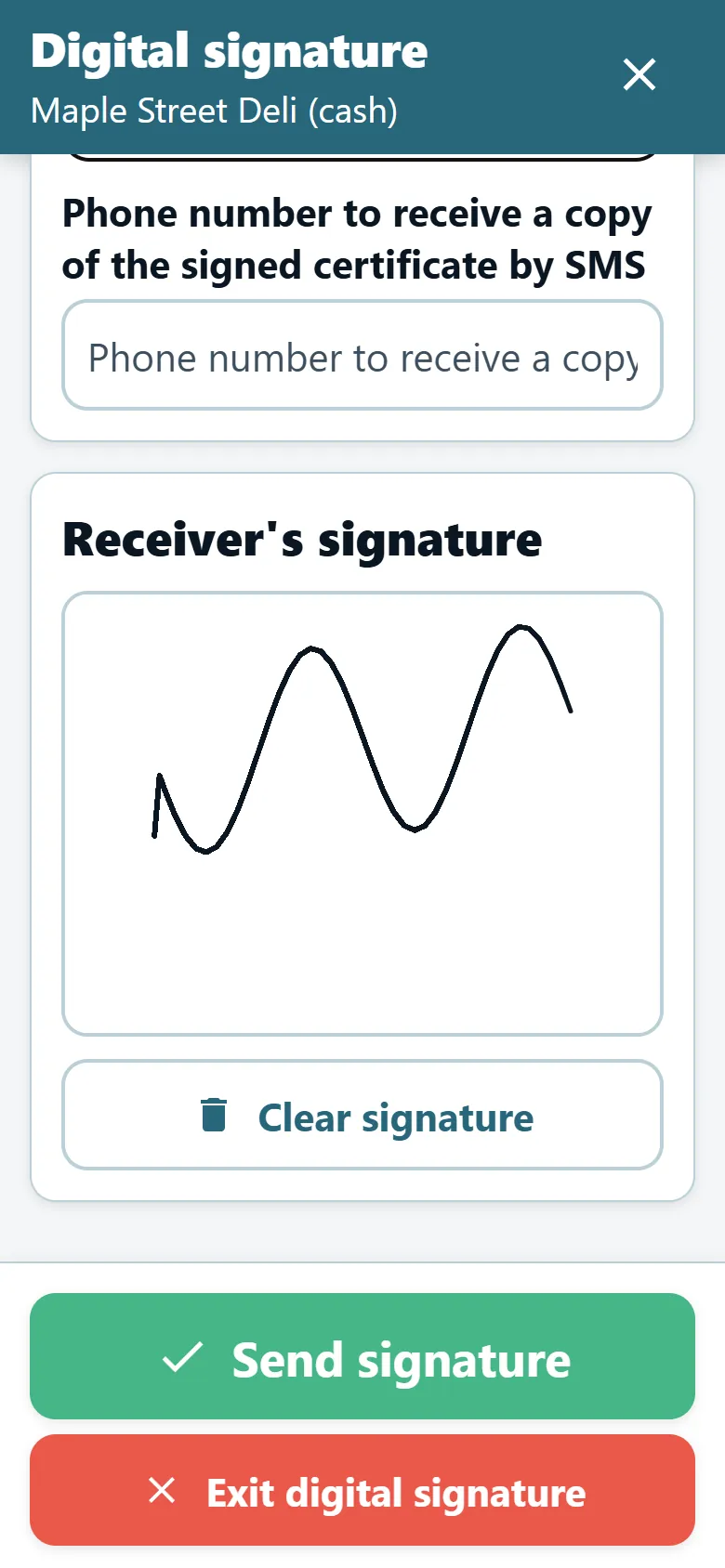
Marking arrival at a cash customer opens an alert with the amount due according to the order. The collection screen takes cash, the cheques amount, the number of cheques and a free note, with the amount due shown above the fields. If what was collected differs from what was due, the app requires a reason from the office's list of gap reasons. A cash customer delivered without a collection report is flagged as missing, and the driver completes it from the stop list before ending the day. What happens next at the office is explained on the cash and day closing page.
Pallets and loading in the app
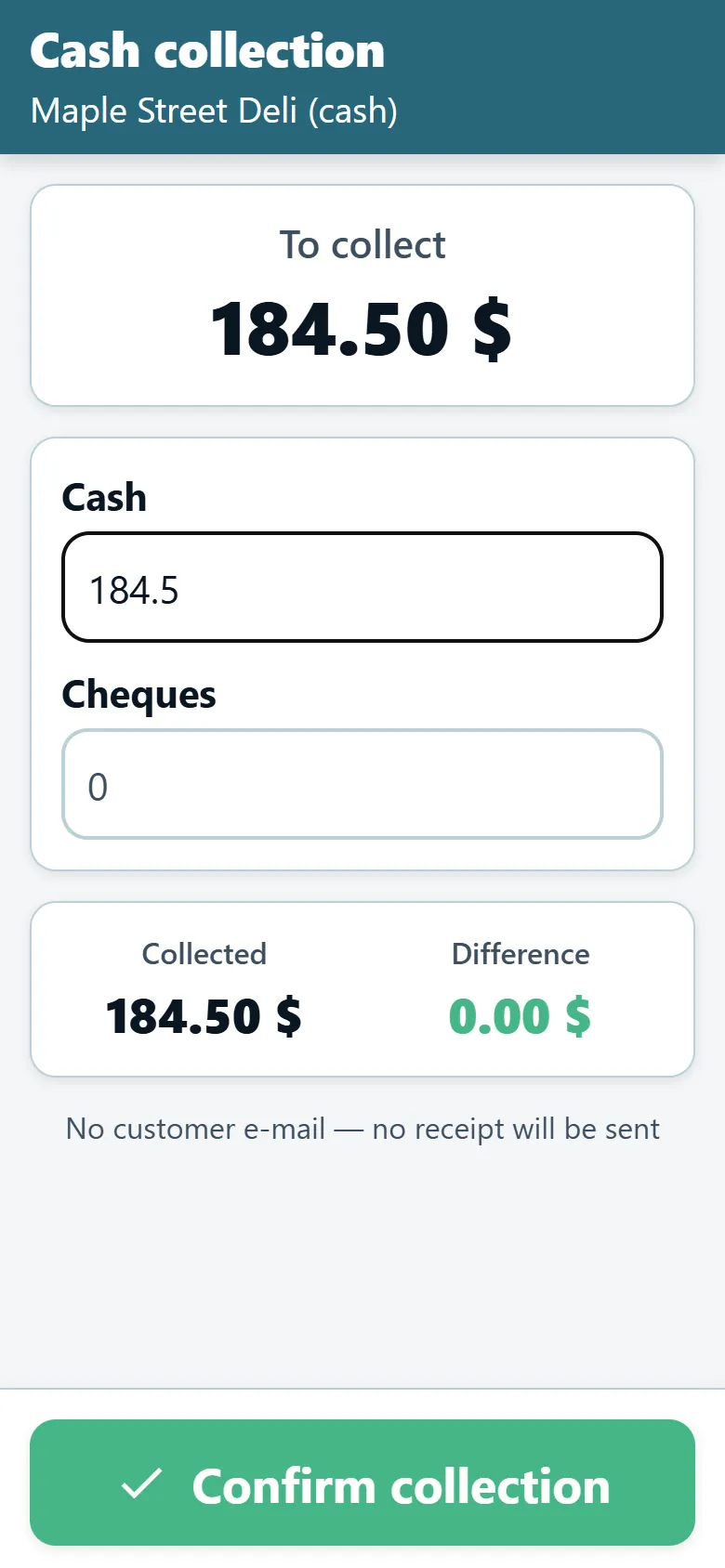
Companies that move goods on pallets can let the driver arrange the route's pallets in the app instead of the office arranging them on screen. With pallet reporting on, the driver records at each stop how many pallets were delivered and collected, separately or together, and whether they are regular pallets or plastons; the totals appear in the e-mail sent when the route ends and are counted back at the cash desk. The full pallet logic is on the pallets and truck loading page.
The end of the day
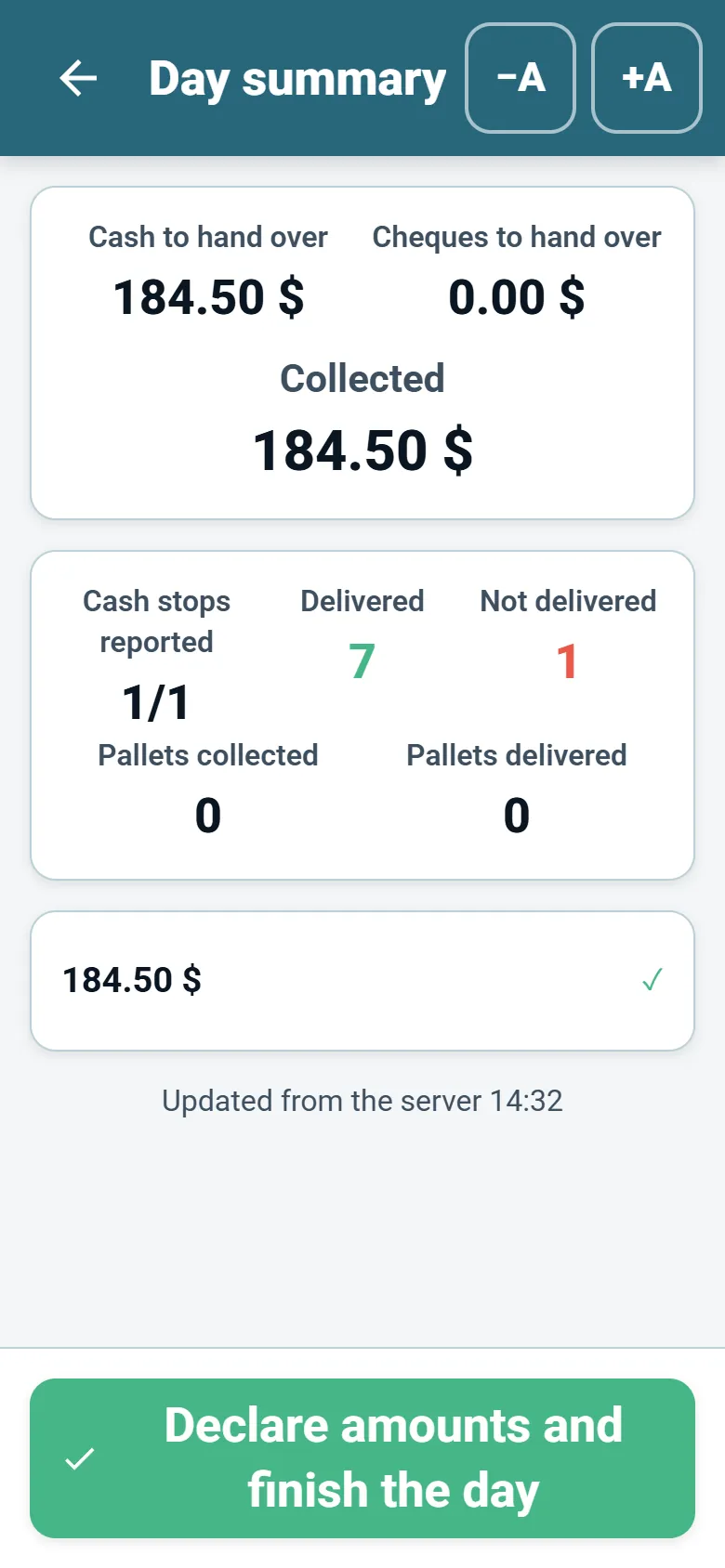
When every order on the route is reported, the app asks whether the driver finished the day. Before it lets the day close, it checks and lists anything still open: orders not reported, signatures the server did not accept, delivered orders whose signed note was not found on the server, cash customers with no collection report, and collection reports that failed. Each item opens the order it belongs to, and Try again re-sends what is waiting.
The driver then sees the totals of the day's collection reports and declares what they actually bring back — cash, cheques and the number of cheques. That declaration moves the route to “awaiting closing” at the office's cash desk. By default, the stops a driver already reported close for them after the day ends; the office can keep them open so a report can still be corrected.
Weak signal and offline moments
Drivers lose signal in basements, warehouses and rural roads. The app saves a completed stop report on the phone before it tries to send it, marks the stop done, and sends the saved report when the connection returns; a report still waiting shows as “waiting to be sent”. A cancellation made without a connection is sent the same way. Finishing the day needs a connection, because the app first makes sure the server received every report and signature.
What the office controls
The driver app follows the company's settings, which the office sets in the web system. The app receives them when the driver signs in, so a driver who does not see a change signs out and in again. A user can be signed in on one device only: signing in on another phone signs the previous one out, and after a password change the driver signs in again with the new password.
| Setting | Effect in the app |
|---|---|
| Photo, signature, recipient's name, pallet report required | The driver cannot finish a delivery until it is done; set per driver. |
| GPS must be on | The app is blocked until the driver allows location “always”, GPS is on and a fresh location exists. |
| Location and camera access required | Without them the app explains how to allow them and waits. |
| A reason when not delivering | The report cannot be finished without a reason from the ready list. |
| Arrived button | Arrival is reported and timed before any delivery option. |
| Routes not closed yet / routes of coming days | Whether the driver sees routes still being planned, and future-dated routes. |
| Ready remarks | The lists the driver picks from for deliveries, returns, non-deliveries, pickups and cash gaps. |
| Delivery reports address | Every delivery report is also sent to another system of yours at a web address. |
Languages, gloves mode and personal scores
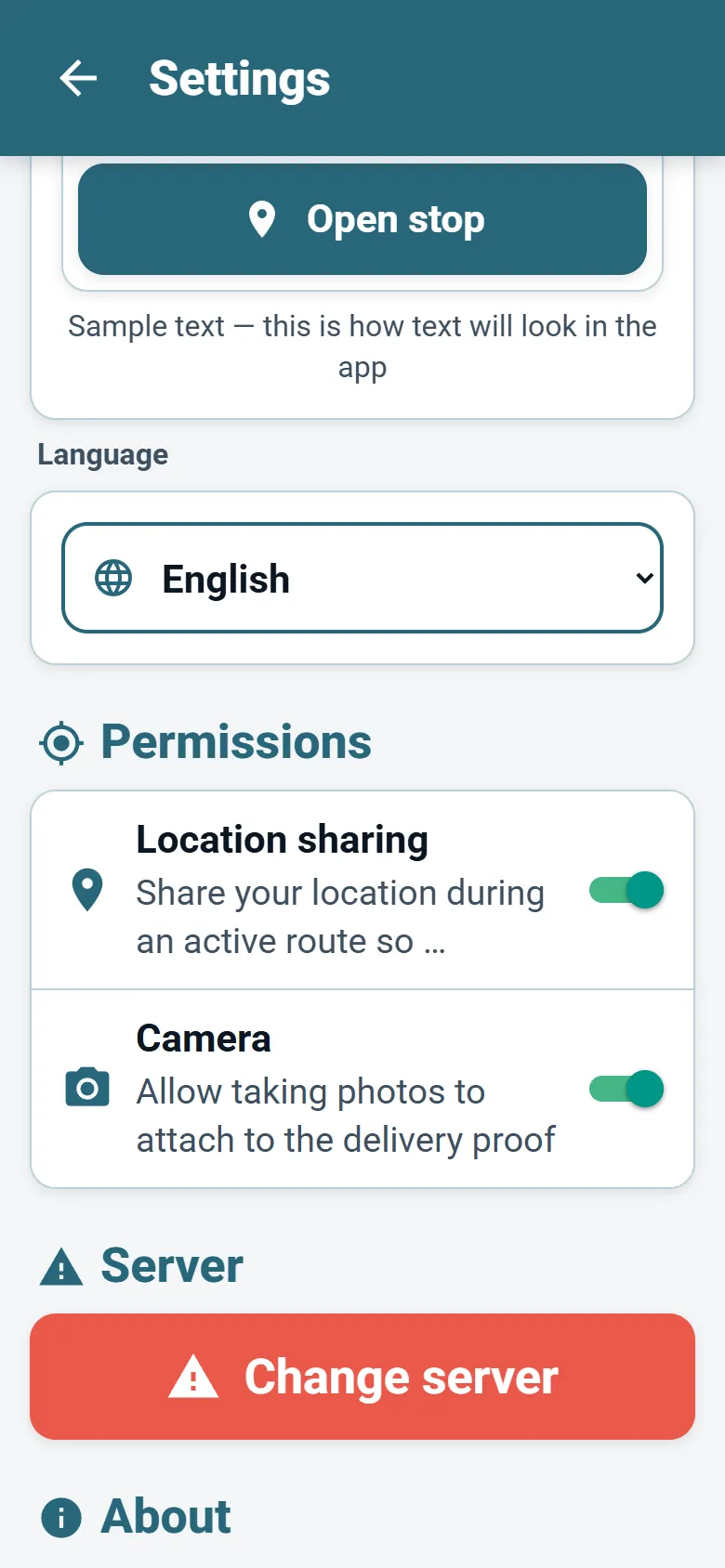
The app opens in the phone's language when it is one of the 34 supported languages, and the driver can switch language from the menu at any time; Hebrew and Arabic display right to left. The display has two modes: regular, dense, with more stops on the screen, and gloves, with large buttons. The office can set the default mode for new drivers, and each driver can also make the text larger or smaller.
Where the company uses driver scores, the driver sees “My performance” in the app: their targets and progress, score and, if the office allows it, their place in the ranking and their bonus status. A driver only ever sees their own figures. Staff who receive drivers at the depot can sign in to the same app and use it as a cashier, and cross-dock scanning is available for cross-dock operations — ask us.
Add a driver during the free trial and follow a real route from the first stop to the end of the day.
3-day free trial · up to 50 addresses a day · no credit card
Frequently asked questions
Do drivers need a separate account?
Each driver is a user of your company. The office creates the driver with a first name, e-mail and app password, and the driver signs in to the app with those details.
Which navigation apps does the driver app open?
Waze on every phone, and Apple Maps on an iPhone. The destination is the customer's address, or the exact map point when navigation by coordinates is on.
Can the app require a signature before a delivery is finished?
Yes. The office can require a signature, a photo, the recipient's name and a pallet report, for all drivers or for specific drivers.
What happens when the driver has no signal?
A completed stop report is saved on the phone and sent when the connection returns. Ending the day needs a connection, so the app can confirm every report arrived.
Can drivers use the app in their own language?
Yes. The app supports 34 languages, opens in the phone's language when it is supported, and the driver can change it from the menu.
Start free trial — 3 days, no card
3-day free trial · up to 50 addresses a day · no credit card