
Proof of delivery: signed notes, photos and an archive
OptiRoutes collects proof of delivery in the driver app: the customer signs the delivery note on the driver's phone, with up to three photos, remarks and returns. The signed PDF is stored with the order, e-mailed to the addresses you choose for every signature, a remark or returns, and downloadable for any day as one ZIP file.
Updated:
What counts as proof of delivery in OptiRoutes?
Proof of delivery (POD) is the record that a delivery reached the customer and what was handed over. OptiRoutes supports several levels, which you can combine and set per driver:
| Requirement | What the driver does |
|---|---|
| Photo required on delivery | Photographs the delivery note. |
| Signature required on delivery | The recipient signs on the phone's screen. |
| Recipient's name required | Records the name of the person who received the goods. |
| Pallet report required | Reports how many pallets were collected; zero is a report too. |
| Digital signature on the delivery note | The customer signs the delivery note itself in the app, with photos, remarks and returns. |
Each “required” switch stops the driver from finishing the delivery until it is done, so a delivery reported in the office always carries the proof you asked for. Customers who need a signed note can get “signature required” and “recipient's name required” on the drivers who serve them.
How does the digital signature on the delivery note work?
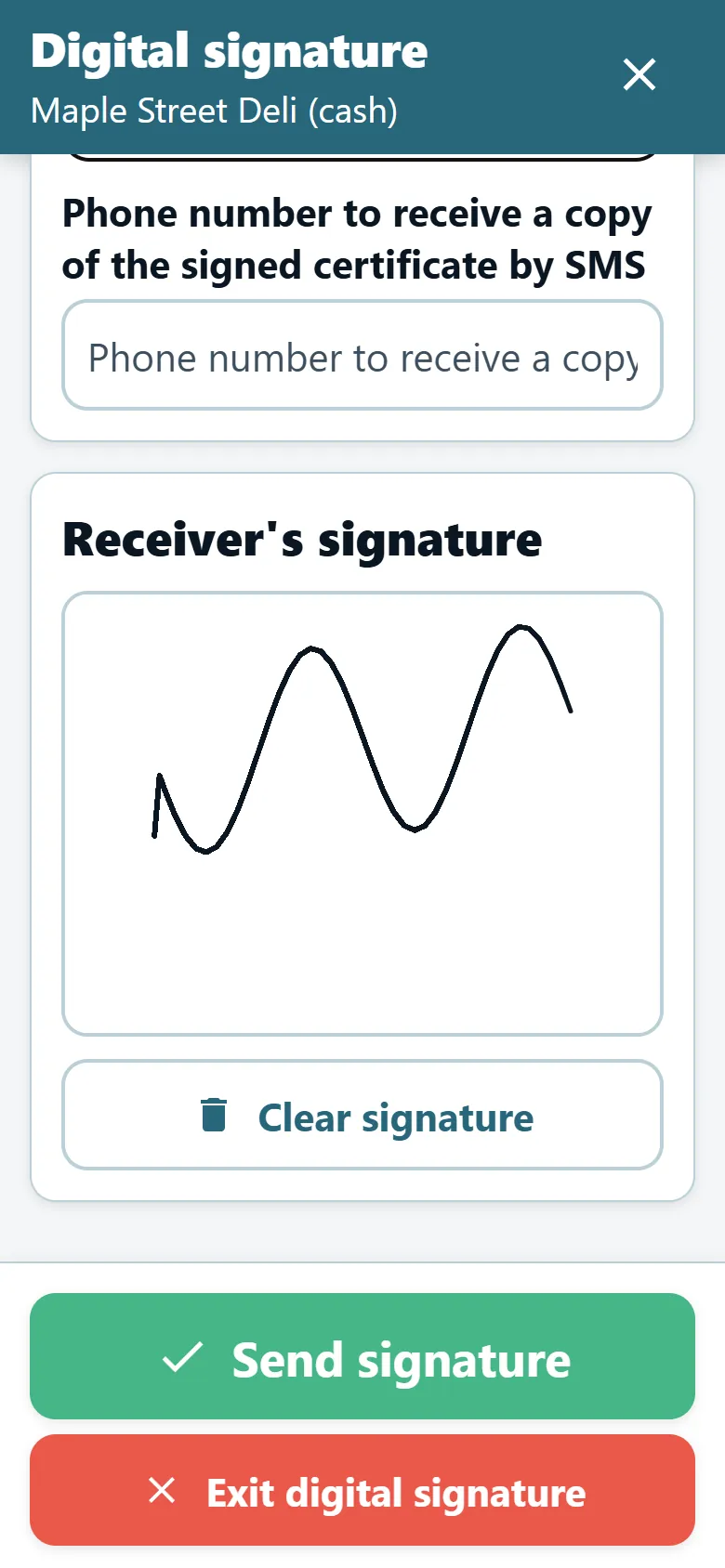
Turn on the digital signature in the driver app settings and the customer signs the document on the driver's phone. There are two ways the document reaches the app:
- The order's own delivery note — your system places a PDF per order number in the company's POD folder, through the Files API or the file server, and the customer signs that exact document.
- Your blank signing template — when an order has no note file of its own, the customer signs a blank PDF of your business's note, uploaded once in the settings.
To make customers sign only the original document, turn on block signing when the original delivery note file is missing: without the file the driver cannot open the signature. To have a location for every signature, turn on block signing while GPS is off. In fields shown while signing you list the order fields — for example the order number, quantity or amount — that the driver and the customer see on the signing screen.
On delivery the customer signs with up to three photos, remarks and returns. Where reception is weak, send the signature in the background lets the driver move on at once while the signature is sent behind the scenes; if the server does not accept a signature, the app re-sends it and lists it at the end of the day until it arrives.
Setting up proof of delivery
Choose the requirements
On the drivers screen, turn on photo, signature, recipient's name or pallet report for the drivers who need them.
Turn on the digital signature
In the driver app settings, check the digital signature on the delivery note and list the fields shown while signing.
Upload the blank template
Pick a PDF of your blank delivery note; it is stored as soon as you choose the file.
Set the e-mail routing
Fill in the addresses for every signature, signatures with a remark and signatures with returns, and the sending Gmail account with its app password.
Test with one driver
Drivers get new settings when they sign in, so ask one driver to sign out and in again and sign a test delivery before telling everyone.
Where do signed delivery notes go?
Signed notes are e-mailed automatically, with three receiving addresses so each note reaches the person who handles it:
- Every signature — an address that gets a copy of every signed note, for example your back office or archive mailbox.
- A signature with a remark — for whoever follows up on customer remarks.
- A signature with returns — for whoever handles returns and credit notes.
The e-mails go out from your business's own Gmail account, in your business's name, using a Google app password that you create in Google's security settings — never the account's regular password. A copy of every signed note is also kept in the company's folder, where your systems can collect it.
Remarks and returns that stay consistent
A signed note is only as useful as the words next to it. Drivers pick delivery remarks and returns notes from ready lists that the office maintains, instead of typing a new wording every time, so reports can be compared across drivers and weeks. The lists are edited in the settings, can be reordered and hidden without deleting, and reach the app when the driver signs in. A signature that comes with returns is e-mailed to the returns address, so whoever issues the credit sees it the same day.
Finding a POD later
Proof is only useful if you can find it when a customer asks. OptiRoutes gives several ways back to a signed note:
- Live dispatch — a stop closed with a delivery note shows a document icon; a click opens the POD file in a new tab.
- Delivery reports — the drivers' reports with items list what was reported at each stop and open the signed delivery note.
- POD archive — on the drivers screen, pick a day and download every signed delivery document of the company from that day as one ZIP.
- Files API — your software lists and downloads the POD files of a day, the signed PDF, the signature and the photos separately, or the whole day as one ZIP; see integrations.
Signed files are stored per day in the company's folder, named by order number, so a document can be traced back to the order it belongs to.
Checking POD at the end of the day
POD is part of the day's closing, not a separate chore. On the cash desk, every customer on a route shows a POD chip — green when closed, red when delivered without POD, grey when not delivered — and the alerts box gathers deliveries not closed in POD by route and driver. The home day flow and the period review count deliveries with a signing failure or without a delivery note, so a gap is seen the next morning rather than at the end of the month. The driver app itself lists, before the day can close, any delivered order whose signed note was not found on the server.
Sending delivery reports to your own systems
Besides the documents, every delivery report can be pushed to another system of yours. Fill in the delivery reports address in the driver app settings and each report is also sent there, so your ERP or customer portal updates by itself. Drivers can also share a signed delivery note straight from the phone when a customer asks for a copy on the spot.
Turn on digital signatures during the free trial and sign your first delivery note on a phone.
3-day free trial · up to 50 addresses a day · no credit card
Frequently asked questions
Can customers sign our own delivery note, not a generic form?
Yes. When your system provides a PDF per order, the customer signs that document. When there is none, the customer signs your blank template.
How many photos can a driver attach?
With the digital signature on the delivery note, the customer signs with up to three photos, plus remarks and returns.
Who receives the signed notes?
Up to three addresses you set: one for every signature, one for signatures with a remark and one for signatures with returns. They are sent from your own Gmail account.
Can I download all PODs of a day at once?
Yes. The POD archive on the drivers screen downloads every signed document of the chosen day as a ZIP, and the Files API offers the same archive to your software.
What if the driver has no signal when the customer signs?
With background sending on, the driver moves on and the signature is sent when possible. Signatures the server did not accept are re-sent and listed at the end of the day.
Start free trial — 3 days, no card
3-day free trial · up to 50 addresses a day · no credit card